Site Builder
The Site area turns imported and computed project content into the public portal structure. This is where you shape pages, navigation, and presentation before you move to Publish.
What this stage is for
Use Site to:
edit shared pages such as the homepage or methodology
configure collection pages
organise navigation and page order
check the live page preview while you edit
If you are not there yet, start with collections.md.
1. Edit shared pages
Use the main Site Builder view to shape the pages that define the public portal.
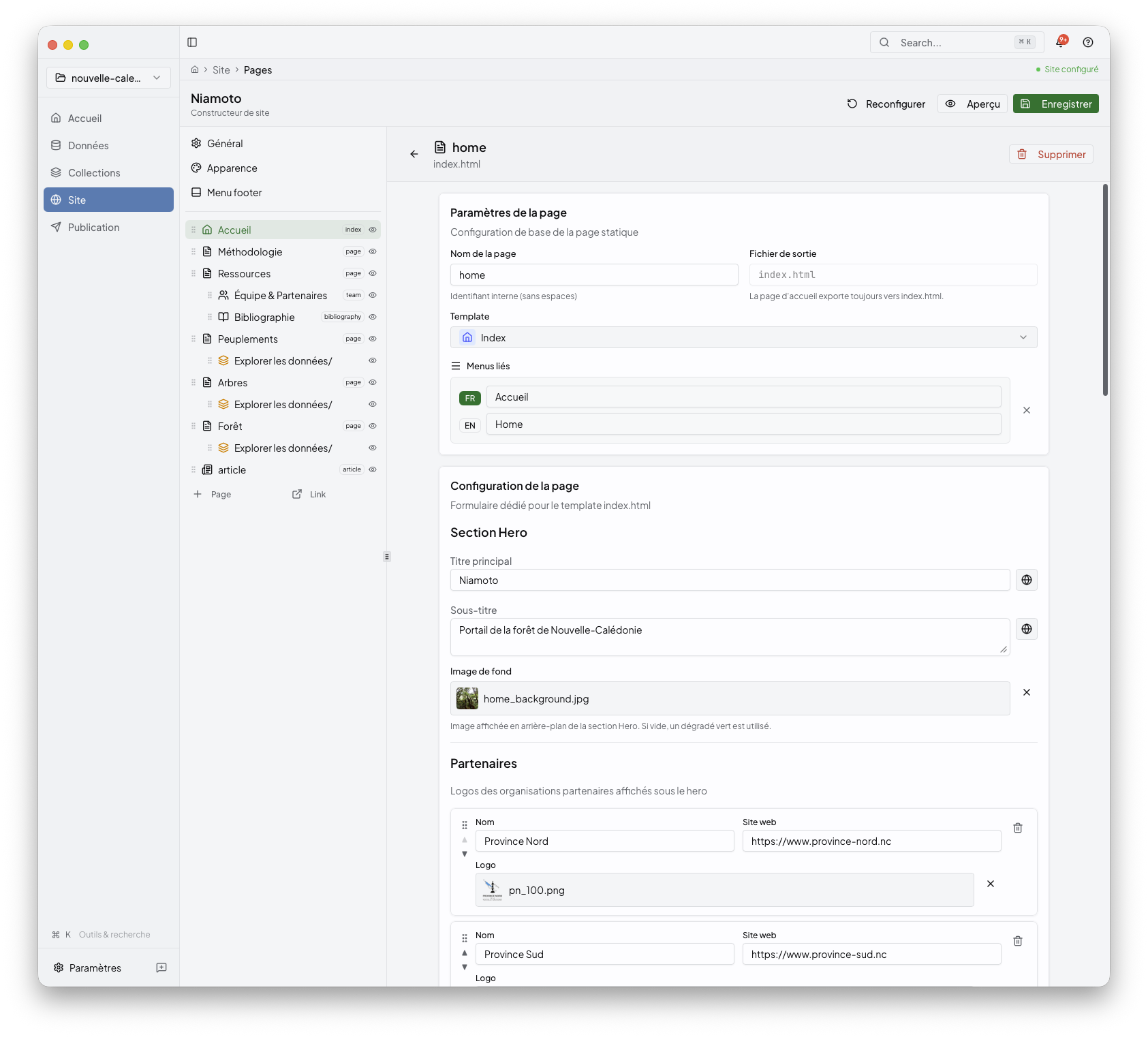
This is the right place to work on:
homepage structure
introductory content
page order and navigation
the overall feel of the generated site
2. Build the supporting pages
The Site area is not limited to the front page. Use it to document methodology or other static pages that give readers context.
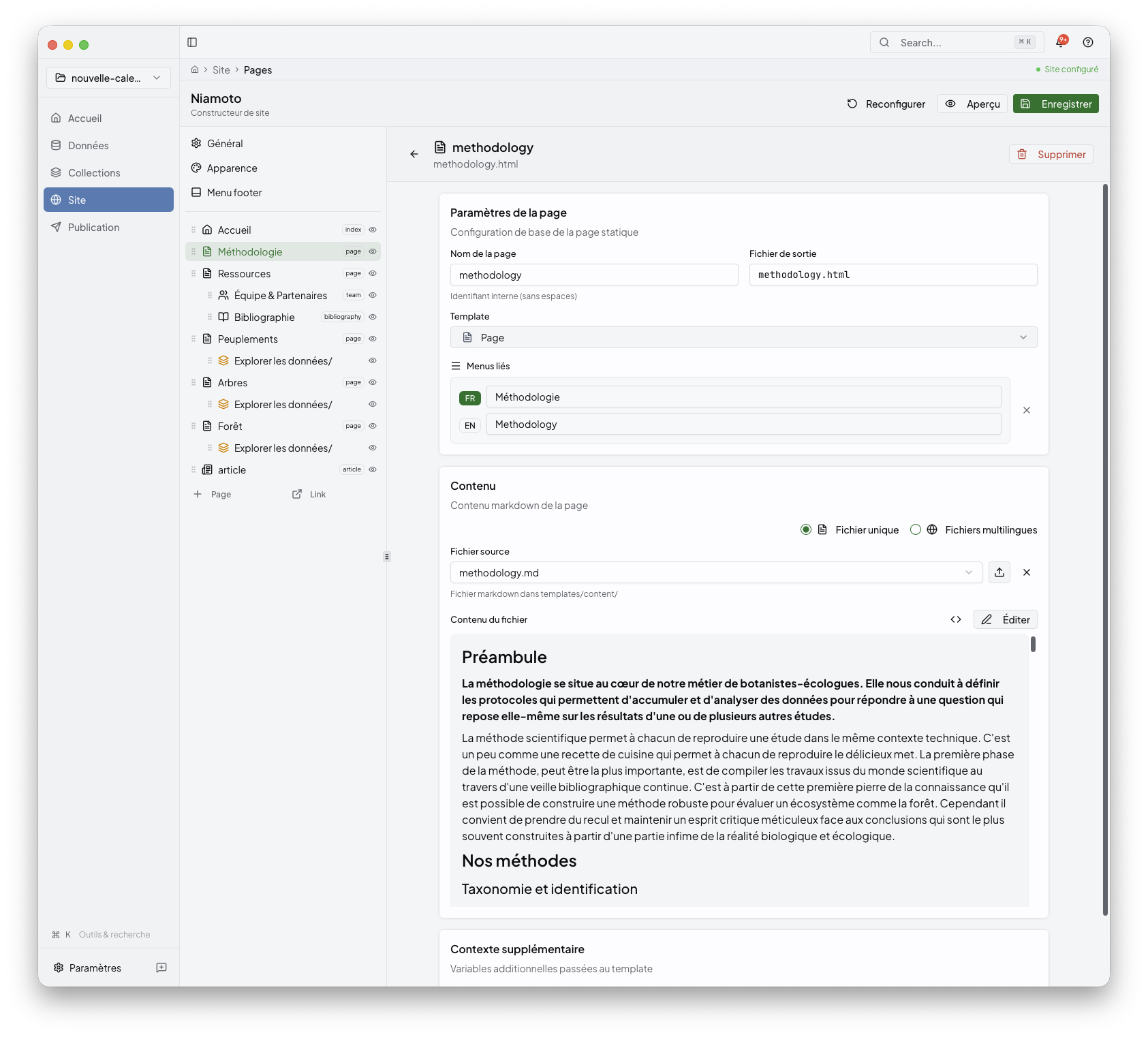
Treat this stage as the editorial layer of the project: the part that turns raw project outputs into a coherent site people can actually read.
3. Configure collection pages
Collections can also feed their own public-facing pages inside the site.
This is where the Collections stage and the Site stage meet:
Collections defines the reusable outputs
Site decides how they appear inside the portal
Behind the UI
If you look at the project config directly, this stage mainly maps to the site
structure stored in config/export.yml. The desktop app keeps that complexity
behind the interface, but it helps to know that page and navigation edits are
driving the generated site definition.
What comes next
Once the site structure looks right, move to publish.md to build the output, inspect the generated preview, and deploy it.